Cask Tracker
- Nitin Motgi
- Tolga
- Russ Savage
- John Jackson
Owned by Nitin Motgi
What is Cask Tracker ?
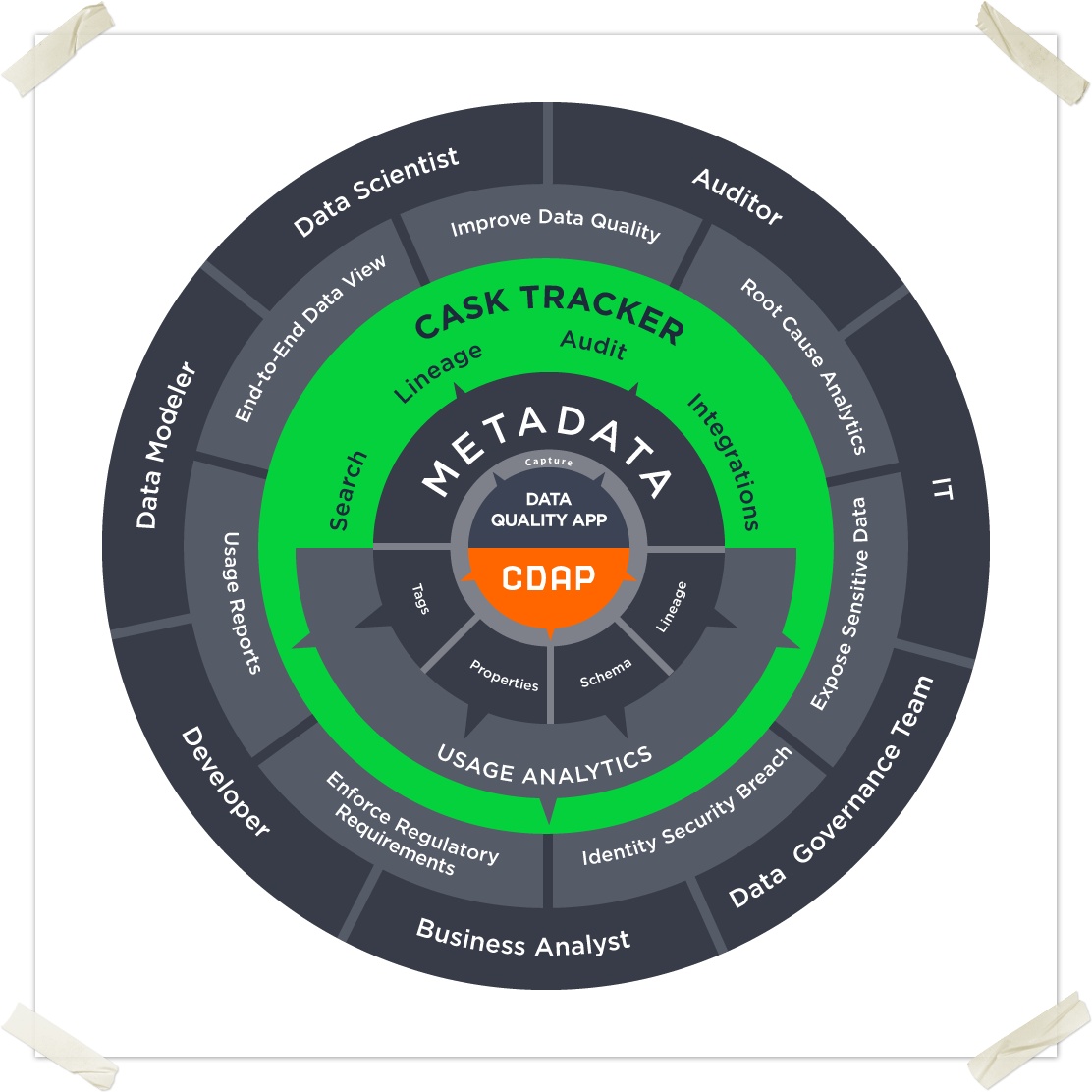
Cask Tracker (formerly Cask Finder) is a CDAP Extension that provides the ability to track data ingested either through Cask Hydrator or a Custom CDAP Application and provide input to data governance processes on a cluster.
It includes this data about "the data":
- Metadata
- Tags, Properties, Schema for CDAP Datasets and Programs
- System and User
- Data Quality
- Metadata that include Feed-level and Field-level quality metrics of datasets
- Data Usage Statistics
- Usage statistics of dataset and programs.
Checklist
- User stories documented (Nitin)
- User stories reviewed (Nitin)
- Design documented (Shankar)
- Design reviewed (Terence/Andreas/Albert)
- Feature merged (Shankar)
- UI updated (Ajai/Edwin)
- Documentation for feature (Shankar)
Use-cases
Following are the use-cases for the Cask Tracker.
Case #1
- Rishab is a data scientist/engineer at a company that implements a Data Lake. He is analyzing the effectiveness of the recommendation engine on the company's e-commerce site. For this investigation, he wants to analyze a dataset that includes click log for the last year. He is looking for clean click log data that is up-to-date. He wants to use part of the data to build model and rest to score the model and validate the predictions.
- Before he can conduct an analysis, Rishab needs to confirm the dataset is available in the Data Lake.
- To do so, he wishes to find all entities that include “click log”.
- He arrives at the Finder home screen (from nav, search results, other entry points?).
- Enters “click log” in the Search Box and clicks Search.
- He arrives at the Results Page.
- Results returned
- By default, they are sorted by creation time
- Each Result includes:
- Snippet of the metadata that matches his query in context.
- Important to help him evaluate the relevance of the results.
- Date Created
- To know how recent/new it is.
- Snippet of the metadata that matches his query in context.
- For this analysis, Rishab is most concerned with the recency, the accuracy, and the integrity of the data.
- He clicks the result and arrives at the Entity Detail Page where he can view all of the metadata associated with an entity.
- Rishab wished to verify the validity of the sources of this dataset. To do so, he clicks the Lineage Tab to trace the creation of this dataset to its source.
- Finder displays the lineage for this dataset as a diagram. The selected dataset displays in the center; to the left is the entity that precedes it and to the right is the one it precedes.
- Rishab discovers that it has been created from two separate sources.
- He then clicks one of the sources which takes him to the Entity Page of that dataset.
- He clicks on a program to see what has been done to the dataset.
- Rishab clicks the Audit Logs Tab to see how active this dataset has been - when was it last updated, who is using it, writing to it, reading from it.
- Rishab clicks the appropriate action to make this dataset a new source for his existing Click Log processing pipeline.
- This takes him to the Hydrator Studio where he can edit the Master Click Log pipeline.
Case #2 (Incomplete)
- D-Rock, an IT genius, has been tasked with finding out all the datasets on the cluster that have the field SSN.
- He needs to find every dataset with an SSN field and mask the field by generating new feed containing a masked SSN.
- In order to achieve this task, he uses Cask Finder to achieve this task
- Enters “SSN” in the Search Box and clicks Search.
- He then filters by Schema – meaning he would only like to see results which includes datasets where the SSN field is matched in Schema.
- He then selects the dataset that has this field and ...
Design
Release 1.0 Deliverables
Tracker API Meeting Notes: 2016-03-01
Initial design for audit log API
Endpoint:
- GET /auditlog/<dataset>?starttime, endtime
MUST support:
- relative dates (1d, 1h, 1m, alltime)
- pagination
MUST return:
- total results
- timestamp
- user
- action type
- kind of entity
- name of entity
- entity metadata
Example:
MapReduce job "X" accesses dataset "A" for reading:
timestamp: t0
user: default
action type: READ
kind of entity: MAPREDUCE
name of entity: X
entity meta: { runid: ... }
Created in 2020 by Google Inc.